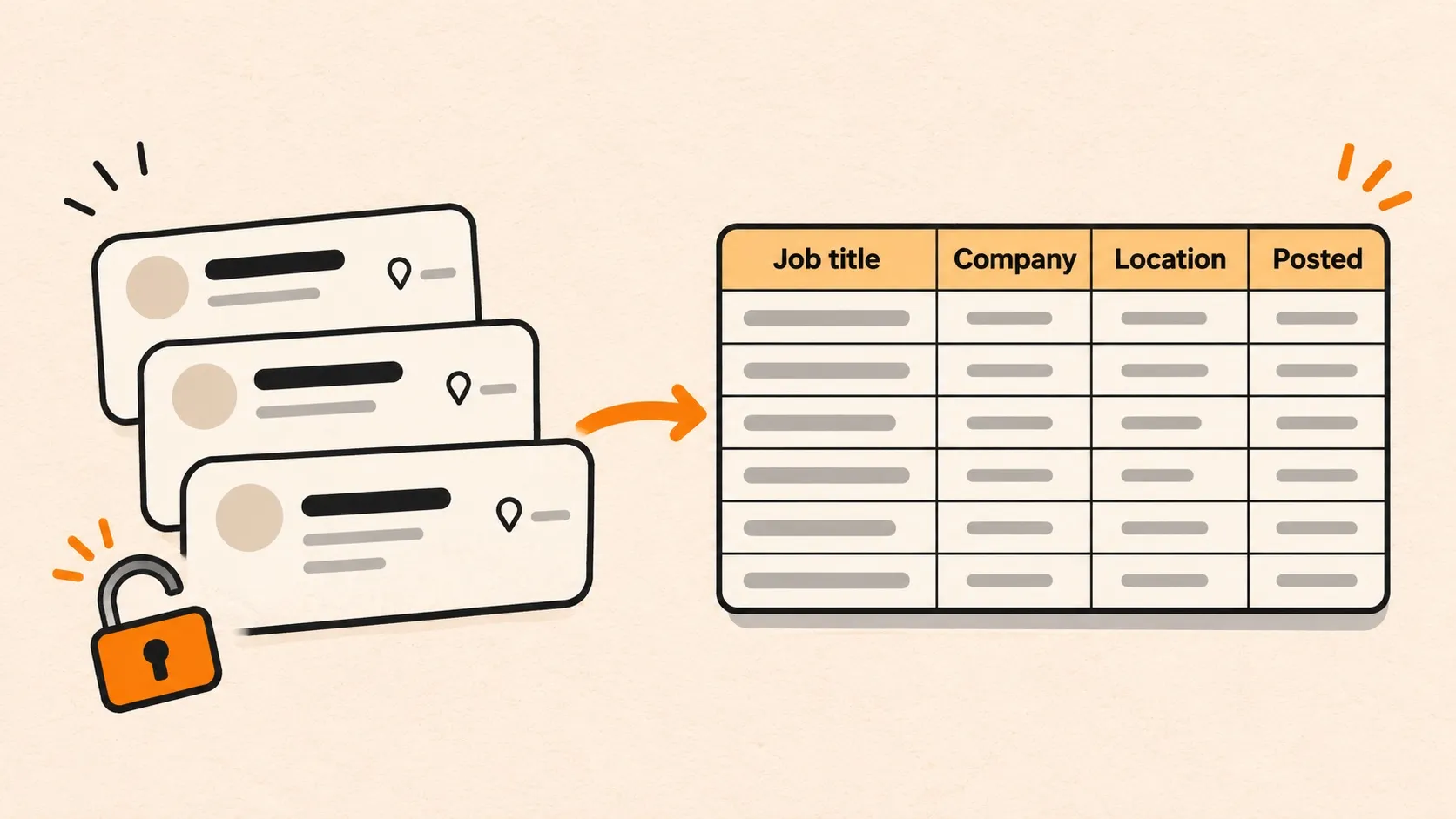
You can scrape LinkedIn jobs without login by reading LinkedIn’s public job search pages, the same ones anyone can open without an account. With a ready-made scraper on Apify, you don’t need to write any code to scrape LinkedIn jobs into a spreadsheet. New to Apify? Start with what Apify is and how it works.
We built the LinkedIn Job Scraper used in this guide, and we run it ourselves. So the steps below are the ones we actually follow.
You’ll go from a job search to a CSV or Excel file, step by step. Along the way we’ll cover what data you get for each job, a filter change from August 2026 that catches people out, and how to get past 1,000 jobs.
Can you scrape LinkedIn jobs without logging in?
Yes. LinkedIn shows job listings on public job search pages that anyone can open without signing in. A scraper that reads those pages needs no LinkedIn account and no cookies, so there’s nothing of yours at risk.
The LinkedIn Job Scraper works this way. It sends direct requests to LinkedIn’s public job search pages (it doesn’t open a browser), and it rotates proxies for you. A proxy is a middleman server that sends requests from a different IP address, so a scraper isn’t making every request from one place.
Be clear on what “without login” gets you, though. You get what LinkedIn shows logged-out visitors on those public pages. That means no private data and no names of the people who applied. Salary only shows up when the listing itself includes it.
What you need before you start
You need a free Apify account and the scraper. You don’t need a LinkedIn account, any code or anything installed on your computer.
An Actor is a ready-made scraping tool you run on Apify. Running one from Apify Store (Apify’s marketplace of these tools) always follows the same loop: pick the Actor, give it input, start a run, collect the results. A run is one time you start an Actor.
You need an Apify account to run any Actor, and signing up is free.
On cost, here’s the short version. The LinkedIn Job Scraper uses pay per event pricing, which means you pay for specific events (here, each job listing it scrapes) rather than for server time. The Store page lists it “from $1.00 / 1,000 scraped job listings”. The exact per-listing price depends on your Apify plan: as of November 20, 2026, it’s $0.005 per listing on the Free plan, $0.0015 on Starter, $0.00125 on Scale and $0.001 on Business. There’s also a tiny “Actor Start” charge of $0.00005 per GB of memory each time a run starts. The per-listing price already includes platform usage, so you don’t pay separately for the servers the run uses.
If you want a safety net, you can set a maximum charge limit when you start a run. Apify never charges you above it.
For plan prices, see our Apify pricing guide.
How to scrape LinkedIn jobs without login, step by step
Open the LinkedIn Job Scraper, enter a job title and location (or paste a LinkedIn search URL), set how many jobs you want, click Start, then export the results. Here’s each step in detail.
Step 1: Open the LinkedIn Job Scraper
Go to the Crawlworks LinkedIn Job Scraper on Apify Store and click Try for free. If you’re not signed in, Apify asks you to sign in or create your free account first. Then you’ll land in Apify Console, the web app where you run Actors.
You should now see the Actor’s detail page with the Input tab open. That’s the form where you tell the scraper what to search for.
Step 2: Choose your search (job title and location, or a LinkedIn URL)
There are two ways in. The simple one is to type a job title and a place. The precise one is to build the search on LinkedIn yourself and paste its link.
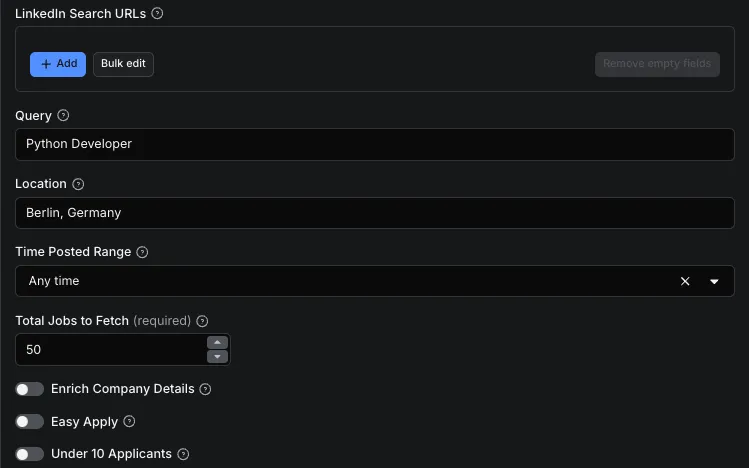
Option A: job title and location. Type a job title in Query and a place in Location. The form comes prefilled with “Python Developer” and “Berlin, Germany”, so you can see the format. Replace them with your own.
Option B: a LinkedIn search URL. This is the better choice when you want LinkedIn’s own filters.
- Open LinkedIn Jobs in your browser. You don’t need to sign in to search.
- Search for the role and apply the filters you want.
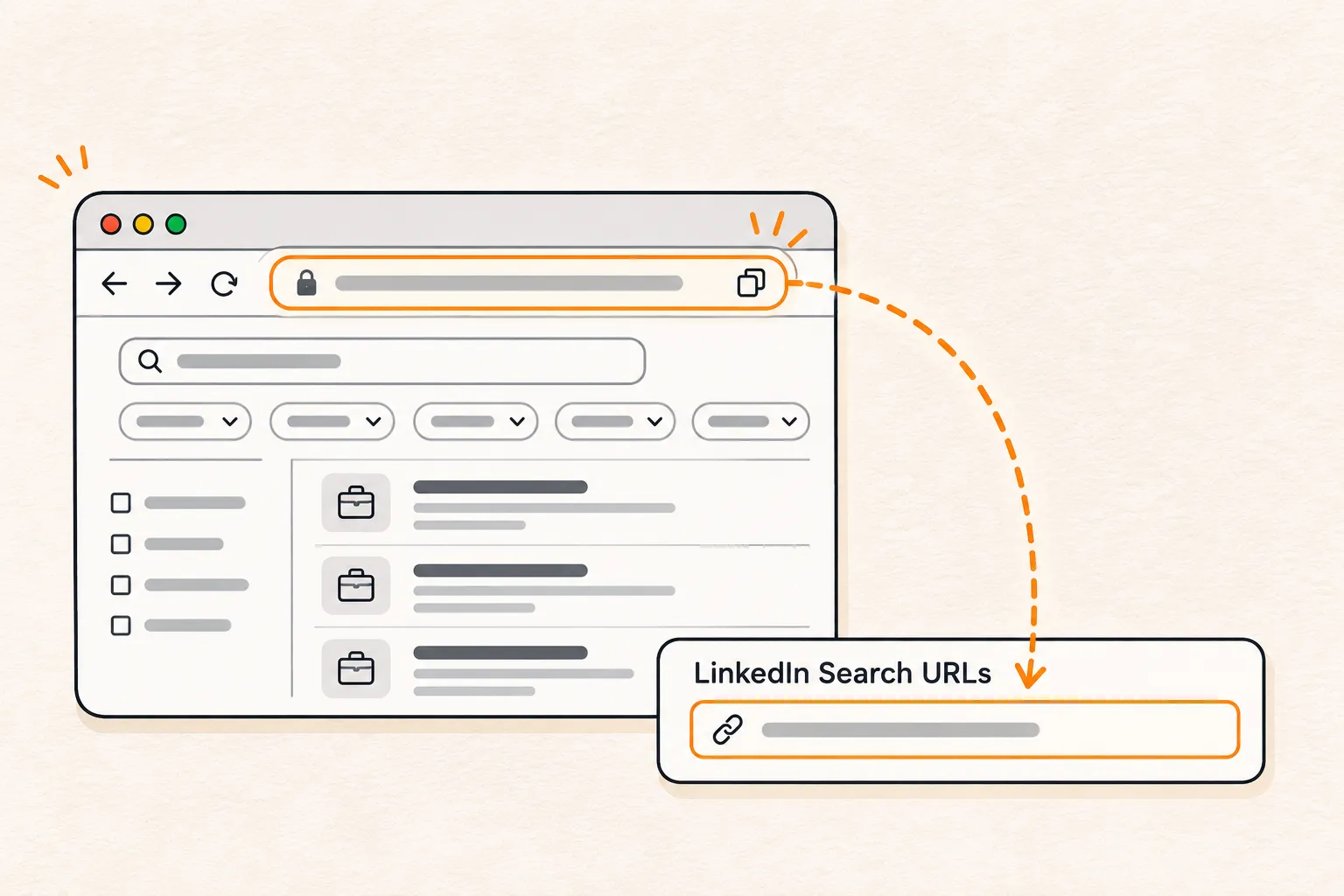
- Copy the full address from your browser’s address bar. It should start with
https://www.linkedin.com/jobs/search?. - Paste it into LinkedIn Search URLs in the scraper’s form.
You can add as many search URLs as you like to one run. When you use them, the scraper ignores Query and Location and uses the filters inside each URL instead.
We tested this on November 20, 2026 with a public search for “Data Analyst” in London, filtered to the past week. We asked for 25 jobs and got 25, all posted between November 13 and 20. So the date filter in the URL carried through to the results.
Step 3: Set how many jobs and how recent
Total Jobs to Fetch is the only field you have to fill in. It’s prefilled at 10 and goes up to 1,000. The scraper removes duplicates, so you get at most that many unique jobs. If you’re using search URLs, the number applies to each URL separately.
Time Posted Range limits results to jobs posted in the past 24 hours, 3 days, 7 days or 30 days. Leave it empty to get jobs from any time.
Our advice: start small. Ask for 10 to 50 jobs on your first run and check the results look right before you ask for 1,000. Apify’s own docs suggest the same thing: try an Actor on a limited scope first and see what it uses.
Step 4: Add optional extras
Three switches are worth knowing about.
- Enrich Company Details visits each company’s LinkedIn page and adds company fields to every job: description, employee count, headquarters, slogan, website, industry, company type, specialities and locations. It makes one extra request per unique company.
- Easy Apply keeps only jobs you can apply to with LinkedIn’s Easy Apply.
- Under 10 Applicants keeps only jobs with fewer than 10 applicants. Handy if you’re job hunting and want the less crowded listings.
If you need full company profiles rather than a few extra columns, our LinkedIn Company Scraper is built for that.
You’ll also see checkboxes for job type, experience level and work type in the form. Don’t rely on them: since August 2026 LinkedIn treats them as hints rather than strict filters. We explain what to do instead in Filtering by job type, experience level and remote work in 2026 below.
Step 5: Click Start and wait for the run
Click Start. The run page opens and the scraper gets to work.
While it runs, you can watch the log (the scraper’s running commentary on what it’s doing) and look through the other tabs. The API button shows the web addresses developers can use to run the same thing from code.
When the run finishes, its status changes to Succeeded and the results are ready.
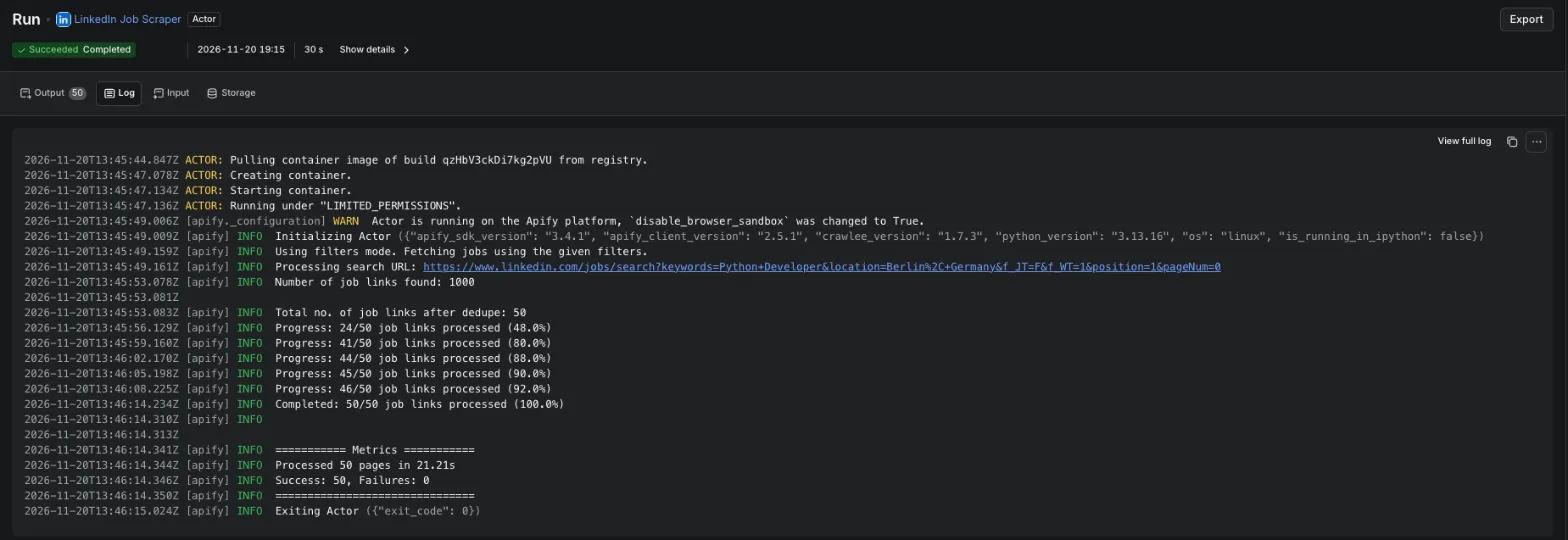
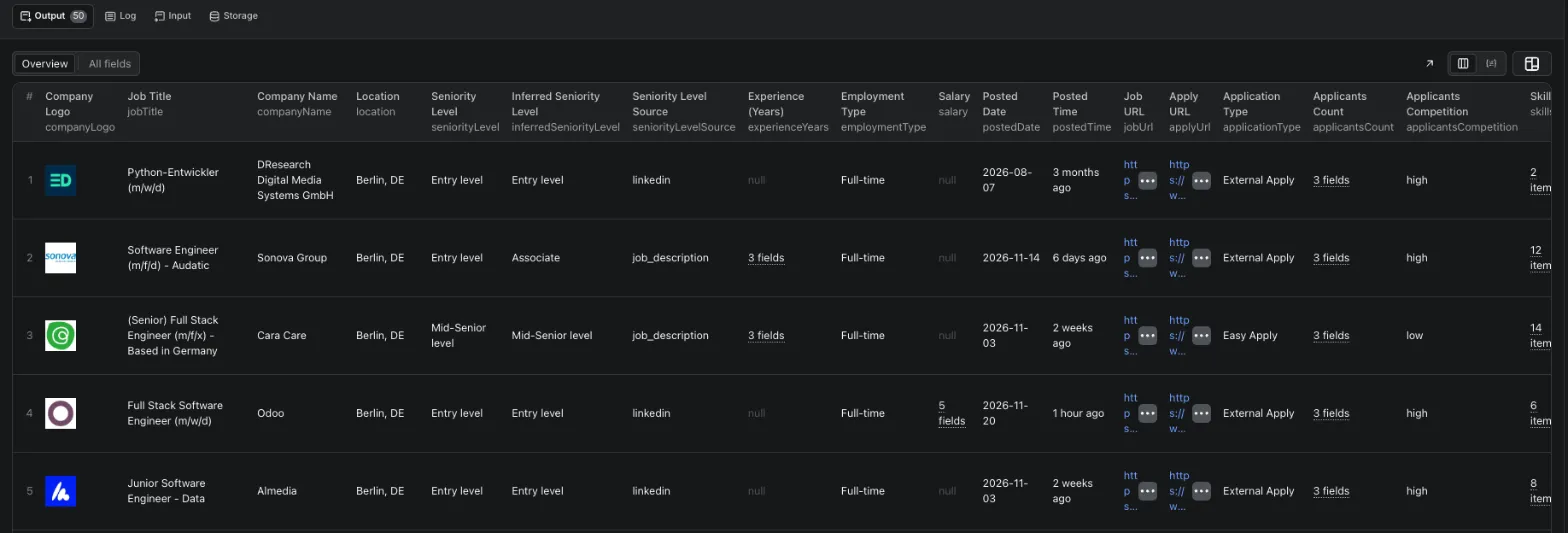
Our test run. On November 20, 2026, we ran the scraper with the form as it opens: “Python Developer” in “Berlin, Germany”, any posting date, with the default checkboxes left alone. We set Total Jobs to Fetch to 50. The run finished in 30.6 seconds with 50 jobs, 10 of which included a salary. It used 0.034 compute units, Apify’s measure of server time (you don’t pay for these separately on this Actor; see Apify compute units explained if you’re curious). The Actor’s README says it can fetch up to 1,000 jobs in under a minute. That’s the README’s claim, not something we timed for this guide.
Step 6: Export LinkedIn jobs to CSV, Excel or JSON
Your jobs are in the Output tab. Click Export, pick a format and download. No browser extension needed.
Behind the scenes, every run saves its results to a dataset, which is Apify’s name for a results table. Each job is one row and each field (title, company, location and so on) is a column.
- Open the Output tab on the finished run. You’ll see your jobs as a table.
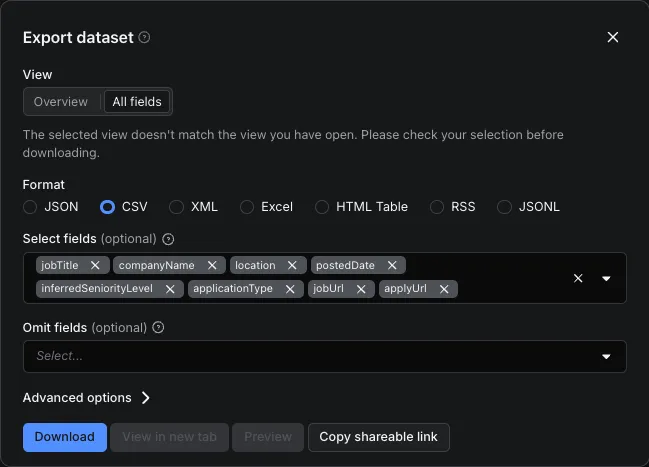
- Click Export.
- Pick a format: CSV, Excel, JSON, XML, HTML table, RSS or JSONL. For a spreadsheet, choose CSV or Excel.
- Optional: in Select fields, list only the fields you want, in the order you want them. Or use Omit fields to drop the ones you don’t need.
- Click Preview to check the result, then download.
For a clean spreadsheet, here’s the set of fields we pick: jobTitle, companyName, location, postedDate, inferredSeniorityLevel, applicationType, jobUrl and applyUrl. You can always export everything later.
You can find the dataset again under Storage > Datasets in Console. Don’t treat it as permanent storage, though. Unnamed datasets are deleted automatically after your plan’s data retention period, so download the file or give the dataset a name if you need it long term.
What data you get for each LinkedIn job
Each row is one job. These are the fields you’ll see, grouped so they’re easier to scan.
| Group | Fields |
|---|---|
| The job | jobTitle, jobDescription, location, employmentType, industry, skills, postedDate, postedTime, validThrough, jobUrl, sourceSearchUrl |
| The company | companyName, companyUrl, companyLogo (plus the extra company fields if you turned on Enrich Company Details) |
| Seniority | seniorityLevel, inferredSeniorityLevel, seniorityLevelSource, experienceYears (min, max and the original text) |
| Pay and applying | salary (min, max, currency, period and text, when the listing has it), applyUrl, applicationType (Easy Apply or External Apply), applicantsCount, applicantsCompetition |
A few fields, like salary and experienceYears, hold several values. In a CSV or Excel export they become several columns, one per value.
Why we added inferred seniority
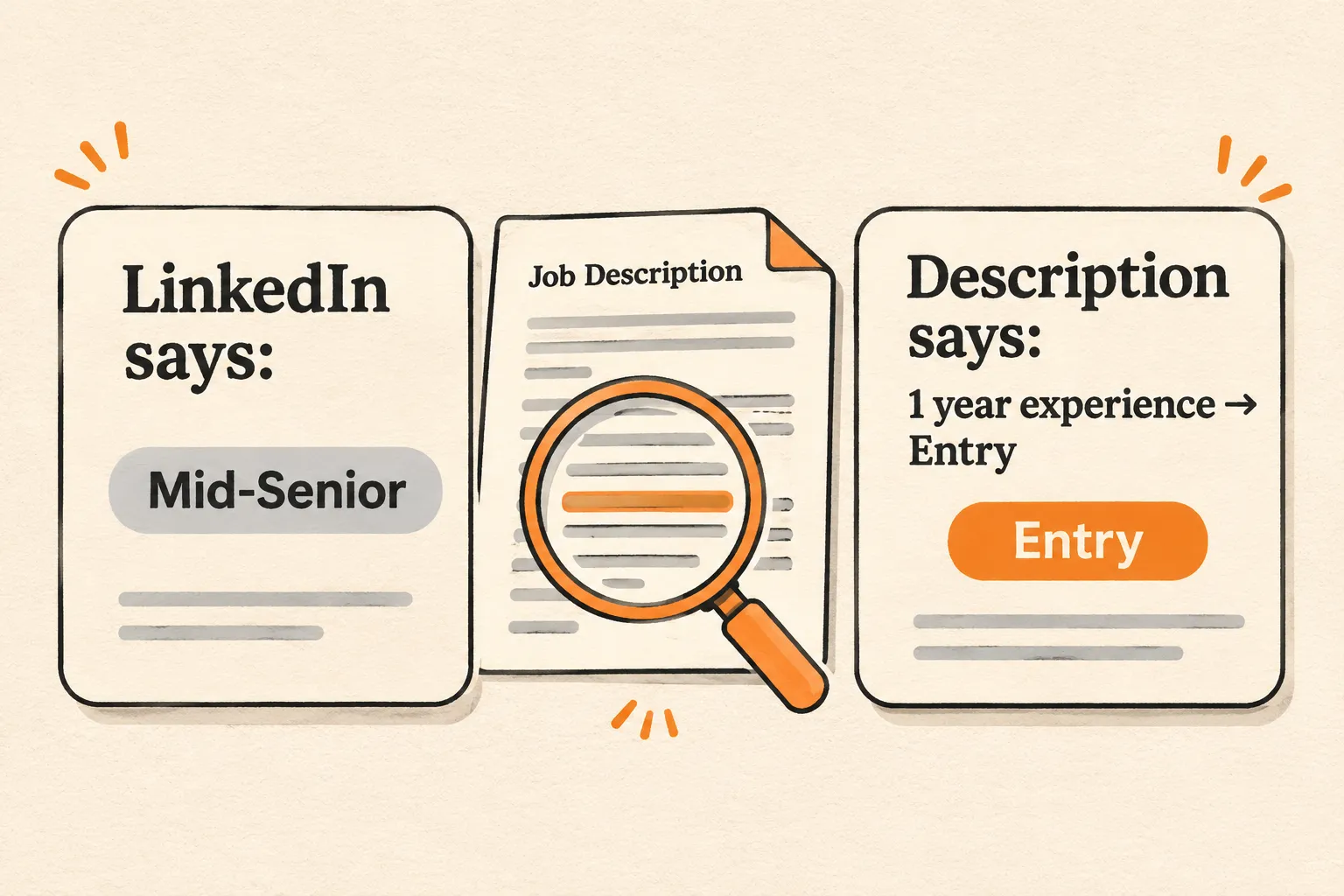
LinkedIn’s own seniorityLevel is picked by whoever posts the job, and in our experience it’s often wrong. A job can carry one level on LinkedIn while its description asks for experience that fits a different one.
So the scraper reads the description and works out seniority from the years of experience it asks for. Under 2 years becomes Entry, 2 to 4 years becomes Associate, and 5 or more becomes Mid-Senior. That’s the inferredSeniorityLevel field, and experienceYears holds the numbers it’s based on.
Our test run had good examples of both directions. A “Software Engineer” role at Moody’s was labelled Mid-Senior on LinkedIn, but the description asked for “1+ years of relevant hands-on industry experience” (alongside a PhD), so the scraper marked it Entry level. Going the other way, a “Senior Backend Engineer” role at GeneralMind was labelled Associate, while its description asked for “6+ years building and operating backend systems in Python”. The scraper marked that one Mid-Senior.
If you’re looking for roles that need 0 to 2 years of experience, filter on inferredSeniorityLevel or experienceYears.min rather than LinkedIn’s label. You’ll catch roles with low experience requirements that LinkedIn files under a more senior level, like that Moody’s job.
Filtering by job type, experience level and remote work in 2026
Put these filters in your search words instead of the checkboxes. The Job Type, Experience Level and Work Type checkboxes are still in the form, and the scraper still sends them to LinkedIn. But since LinkedIn’s AI-powered job search update in August 2026, LinkedIn treats them as hints, not strict filters. Our README flags this change.
You can see it in our test run. The form opens with Full-time ticked and On-Site switched on, and we left both as they were. Even so, 3 of the 50 results were contract roles, and several were remote jobs, a few with “Remote” right in the title.
So untick those defaults if you want everything, and write your real requirements into Query instead. For example:
- “Remote Software Engineer”
- “Entry Level Sales In Healthcare Posted Last Week In NY”
LinkedIn’s AI does the matching, so the results aren’t 100% strict, and a few jobs may not fit every word of your query. Check your results after export, for example by filtering on inferredSeniorityLevel (see the section above).
How to get more than 1,000 LinkedIn jobs
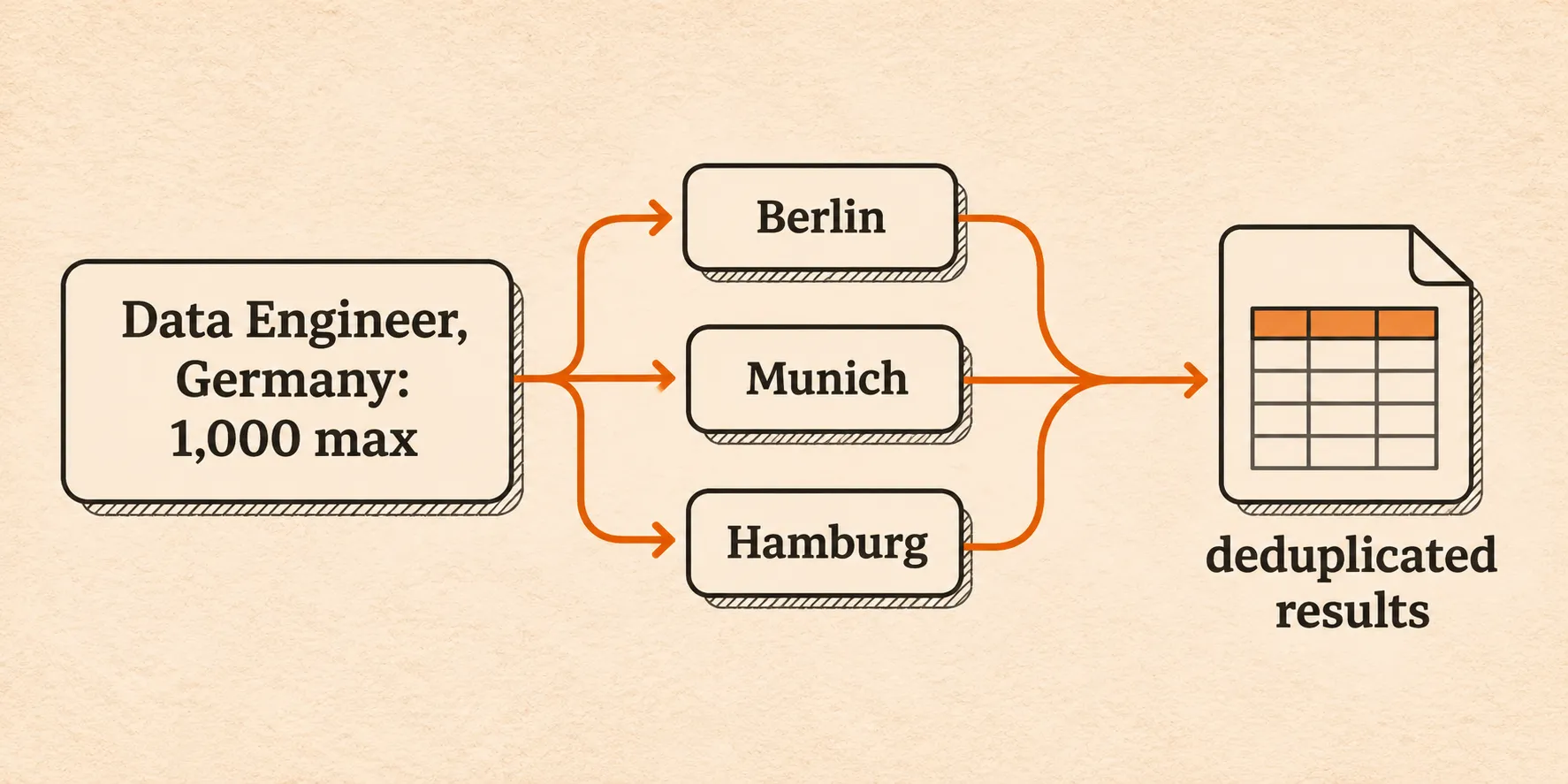
One search in this scraper returns at most 1,000 jobs. To get more, split your search into smaller ones, and plan the split before your first big run.
Here’s how we split searches:
- By location. Search Berlin, Munich and Hamburg separately instead of all of Germany.
- By job title. Run “Data Engineer” and “Analytics Engineer” as separate queries.
- By time. Run the search every day with Time Posted Range set to the past 24 hours. You’ll pick up new jobs as they appear and rarely need 1,000 in one go.
- With several search URLs. Paste as many LinkedIn search URLs as you need into one run. Each URL gets its own 1,000-job limit, and the scraper removes duplicates across them.
- With several runs. Start separate runs for different searches. Developers can start them in parallel through the API.
Run the same search again without re-typing it
Save your input as a task. Then you can re-run it with one click, put it on a schedule, or start it from the API.
A task is a saved setup of one Actor, with your input already filled in. To create one, open the scraper in Console and click Save as a new task at the top right of the page. You can edit the task’s input under its Input tab and run it with Start, just like the Actor itself. Click the task’s caption to give it a name you’ll recognise later (3 to 63 characters).
From there you can automate the whole loop. A schedule starts a task automatically at set times, like every morning at 8. You can also send results to tools like Make, Zapier, n8n, Slack or Google Sheets, or use webhooks (automatic messages Apify sends to another app when a run finishes).
If you write code, here’s the same search from Python. It starts a run with your input, waits for it to finish, then reads the jobs from the run’s dataset. You’ll need your API token from Apify Console in place of MY-API-TOKEN.
from apify_client import ApifyClient

client = ApifyClient("MY-API-TOKEN")

run = client.actor("crawlworks/linkedin-jobs-scraper").call(run_input={
    "query": "Data Engineer",
    "location": "Berlin, Germany",
    "jobsToFetch": 50,
    "timePostedRange": "604800",  # past 7 days, in seconds
})

jobs = client.dataset(run["defaultDatasetId"]).list_items().items
print(len(jobs), "jobs")
Try it on your own search
Run your first search with Total Jobs to Fetch set to something small, like 20. Export it to CSV, check the fields, and once you’re happy, save it as a task.
Open the LinkedIn Job Scraper. If you don’t have an account yet, create a free Apify account first.
Frequently asked questions
Do I need a LinkedIn account to scrape LinkedIn jobs? No. The LinkedIn Job Scraper reads LinkedIn’s public job search pages, which anyone can open without signing in. You don’t need a LinkedIn account or cookies.
Can I scrape LinkedIn jobs without coding? Yes. You fill in a form in Apify Console, click Start, and export the results from the Output tab. Code is optional, for people who want to automate it.
How do I export LinkedIn jobs to CSV or Excel? Open the finished run’s Output tab and click Export. Pick CSV or Excel, and use Select fields if you only want some columns.
How do I get more than 1,000 jobs from a LinkedIn search? Split it into smaller searches: by city, by job title or by date posted. You can paste as many LinkedIn search URLs as you like into one run, and each gets its own 1,000-job limit.
Is it legal to scrape LinkedIn job postings? Scraping publicly available data is generally legal, but rules on personal data and intellectual property still apply, and you should factor in LinkedIn’s Terms of Use. This isn’t legal advice, so check with a lawyer for your specific use case. Apify’s acceptable use policy is also worth a read.
How much does it cost to scrape LinkedIn jobs? You pay per job listing, and the price depends on your Apify plan. The Store page lists it from $1.00 per 1,000 job listings. See our Apify pricing guide for plans.
Why are my Job Type or Remote filters ignored? The scraper still sends those checkboxes to LinkedIn, but since LinkedIn’s AI-powered job search update in August 2026, LinkedIn treats them as hints rather than strict filters. In our test, Full-time and On-Site were ticked and we still got contract and remote jobs. Untick them and put the requirement in your search words instead, like “Remote Software Engineer”.
How fast is it? In our tests on November 20, 2026, 50 jobs from a title-and-location search took 30.6 seconds, and 25 jobs from a LinkedIn search URL took 58.4 seconds. The Actor’s README says it can fetch up to 1,000 jobs in under a minute. Run times vary from search to search.