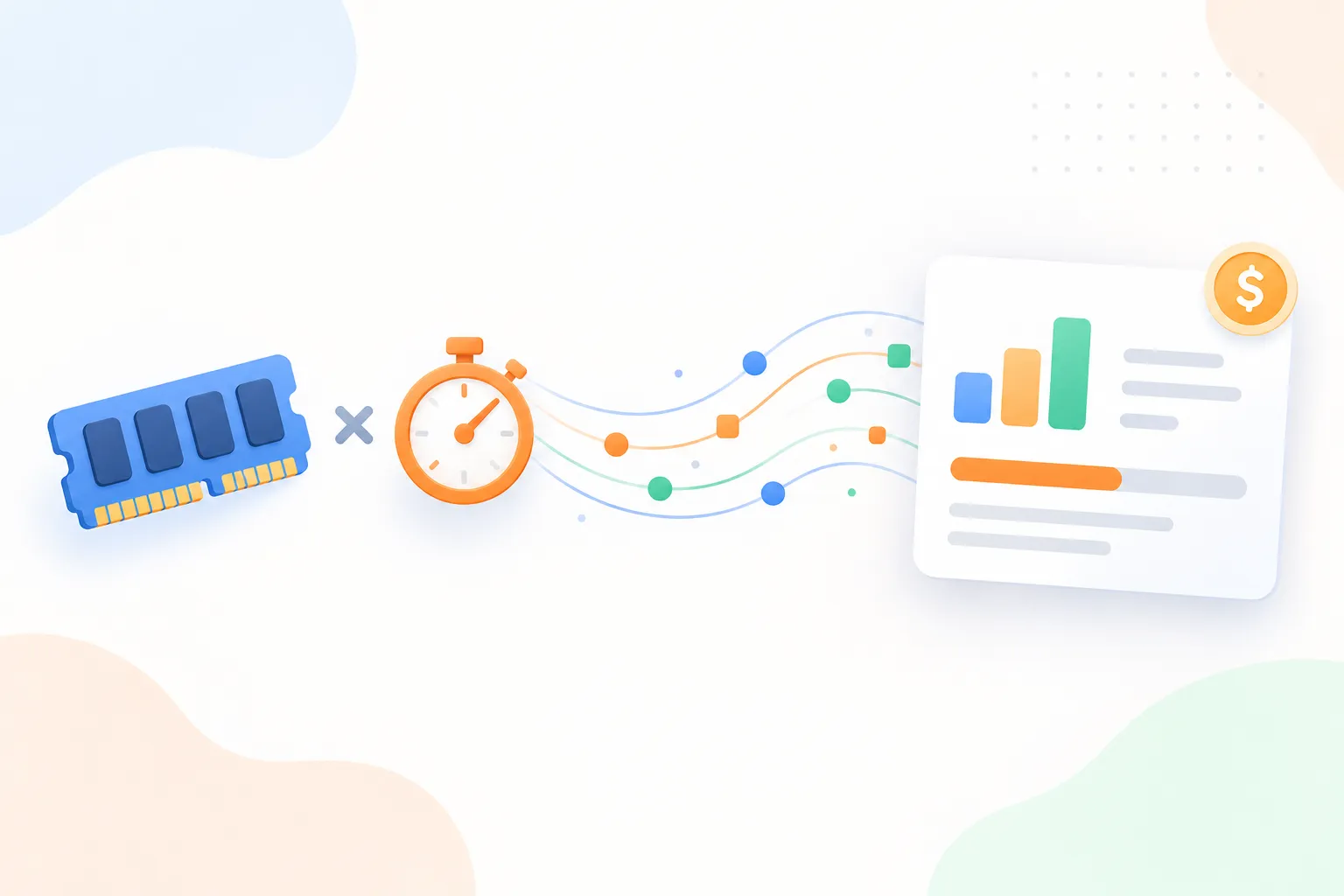
Apify compute units are how Apify measures most of what you use when you run a scraper. Once you know the formula, you can predict your bill before you run anything. New to Apify? Start with what Apify is and how it works.
We publish Actors on Apify Store, Apify’s marketplace of ready-made scrapers, so we see compute units from both sides: as users running jobs, and as developers paying for other people’s runs.
This guide covers what a compute unit is, how to calculate it, a few worked examples, the numbers from one of our own runs, and a five-step way to estimate your monthly bill.
What is an Apify compute unit?
A compute unit (CU) is Apify’s unit for measuring the memory and processing power a run uses. Running an Actor with 1 GB of memory for 1 hour uses 1 compute unit. Apify charges you based on how many compute units you use, and the price per unit depends on your plan.
A few terms first, because they come up throughout:
- An Actor is a ready-made scraping or automation tool you run on Apify.
- A run is one time you start an Actor. It starts, does its job and stops.
- Memory (also called RAM) is the working space a run gets on Apify’s servers. You choose it before you start.
Compute units aren’t only used by runs. Builds use them too. A build is when Apify packages an Actor’s code so it’s ready to run. If you only use ready-made Actors from the Store, you’ll rarely think about builds.
What does one compute unit cost? As of October 26, 2026, Apify’s pricing page lists $0.20 per CU on the Free and Starter plans, $0.16 on Scale and $0.13 on Business. Prices change, so check the current rates in our Apify pricing guide.
How to calculate Apify compute units
You multiply two numbers: memory in gigabytes and run time in hours. That’s the whole formula.
The formula: memory (GB) x duration (hours)
Compute units = memory (GB) x duration (hours)
Apify’s docs list memory in megabytes (MB). To convert, 1,024 MB = 1 GB. So 4,096 MB is 4 GB and 512 MB is half a GB.
Duration goes in hours, so turn minutes into a fraction of an hour. Six minutes is 0.1 hours. Fifteen minutes is 0.25 hours. Apify measures time down to the second, so a 46-second run is billed as 46 seconds, not a full minute.
Memory also sets your CPU and disk
You never pick the processor power (CPU) directly. The memory you choose sets it for you. That’s why memory is the only setting that changes your compute unit cost.
Here’s how it works:
- Memory options. Memory must be a power of 2, from 128 MB up to 32,768 MB (32 GB): 128, 256, 512, 1,024, 2,048, 4,096 and so on.
- CPU. You get one full CPU core for every 4,096 MB. Less memory means a share of a core. 1,024 MB gets a quarter of a core, and 8,192 MB gets two cores.
- Disk. Your run gets disk space equal to twice its memory. A 1,024 MB run gets 2,048 MB of disk.
- Plan limits. A single run can use up to 16,384 MB on the Free plan and up to 32,768 MB on paid plans.
If you don’t set memory yourself, the Actor uses its default. Some Actors calculate this default from your input, for example giving more memory to a bigger list of URLs. That number is fixed once the run starts, and you can always override it before you click Start.
Worked examples
Here’s the formula with real numbers. The first and last rows are the examples Apify uses in its own docs.
| Memory | Run time | Compute units |
|---|---|---|
| 4,096 MB (4 GB) | 15 minutes (0.25 h) | 4 x 0.25 = 1 CU |
| 1,024 MB (1 GB) | 6 minutes (0.1 h) | 1 x 0.1 = 0.1 CU |
| 512 MB (0.5 GB) | 30 seconds (0.0083 h) | 0.5 x 0.0083 = about 0.004 CU |
| 4,096 MB (4 GB) | 15 minutes, every hour for 30 days (720 runs) | 1 CU x 24 x 30 = 720 CUs |
To turn compute units into dollars, multiply by your plan’s price per CU. That last row, at the Starter rate of $0.20, comes to $144 a month in compute units. At the Scale rate of $0.16 it’s $115.20.
Why doubling memory doesn’t double your bill
Because compute units are memory times time, more memory only costs more if the run doesn’t get faster.
Many Actors are built with Crawlee, Apify’s open-source scraping library. Crawlee adjusts how many pages it works on at once to fit the memory it has. Apify calls this autoscaling. For these Actors, Apify says doubling the memory should make the run about twice as fast, so the compute units stay the same: 1 GB x 1 hour = 2 GB x 0.5 hours = 1 CU.
That only works in some cases:
- Autoscaling needs a big enough job. It only helps runs that work through several URLs for at least 30 seconds. If you’re scraping one URL, or the Actor does a single job, Apify recommends lowering the memory instead.
- Some scrapers can’t use more than one core. Many Actors are written in Node.js (a common way to run JavaScript on a server), which runs on a single core unless it uses a browser or other special tools. Above 4,096 MB, these Actors get no extra speed. Apify’s own example: a Cheerio-based scraper (one that reads plain web page code without opening a browser) given 16,384 MB won’t run any faster. You’d pay four times as much for nothing.
Apify calls 4,096 MB “a good middle ground”. Start there if the Actor has no recommendation of its own, then adjust based on what your runs show.
What makes an Actor use more compute units
How many compute units an Actor uses depends on three things. Apify lists them in this order of importance.
Browser vs plain HTTP
Actors that open a real web browser use far more resources than Actors that only download the page’s code. Browser-based Actors (built with tools like Puppeteer or Playwright) load every image, script and style, just like Chrome on your laptop. Plain HTTP Actors skip all that and read the raw HTML.
Apify says plain-HTML scraping with Cheerio can be up to 20 times faster. Browser Actors also need at least 1,024 MB of memory to work. Faster runs and less memory both mean fewer compute units.
Some websites only show their data after a browser runs their scripts, so you can’t always choose. But if two Actors give you the same data, the one that doesn’t need a browser will usually cost less to run.
Run size and frequency
Fewer, bigger runs are cheaper than many small ones. Every run spends some time starting up, and you pay for that time. Large runs also get the full benefit of autoscaling. Apify’s advice: “Whenever possible, opt for larger batches.”
Heavy pages
Some pages are simply bigger. Apify says heavy pages, such as Amazon or Facebook, can take up to 3 times the resources of an average page to load and process. Large, complex sites like Google Maps need at least 4,096 MB to run at a good speed.
A real run, in compute units
Here’s one real run from our own Apify account, so you can see what these numbers look like in practice.
On October 25, 2026, our LinkedIn Jobs Scraper ran on a daily schedule (a schedule tells Apify to start a run automatically at set times). It searched public LinkedIn job listings and saved the results to a dataset, which is the table where an Actor stores what it collects.
| What we measured | Value |
|---|---|
| Memory allocated | 4,096 MB (4 GB) |
| Run time | 46.1 seconds |
| Compute units used | 0.05125 CU |
| Results | 100 job listings |
| Peak memory actually used | 261 MB |
Here’s the math. 46.1 seconds is about 0.0128 hours. 4 GB x 0.0128 hours = about 0.051 CU. That matches the 0.05125 CU Apify reported, which uses the exact run time (46.125 seconds).
To get compute units per 1,000 results:
0.05125 CU / 100 results x 1,000 = about 0.51 CU per 1,000 job listings
At $0.20 per CU, that’s about $0.10 in compute units per 1,000 listings. At $0.16 it’s about $0.08, and at $0.13 about $0.07. This is compute units only. The run’s total usage came to about $0.02 at today’s prices, which also includes the other parts of platform usage covered further down.
Two things stood out to us.
Run times vary. The same daily run took between 11 and 46 seconds over October 16 to 25, 2026. The number of listings a search returns changes from day to day, and so does the run time. One run tells you roughly what to expect, not exactly.
Allocated memory is what you pay for. The run had 4,096 MB but used at most 261 MB, about 6% of it. Apify bills the memory you allocate, not the memory you use. That’s the first place we’d look to cut compute units on a job like this. We haven’t yet tested this run at a lower memory setting, so we can’t tell you the saving. Lower memory can also mean a slower run, which is why testing matters.
You can read these numbers on any of your own runs. In Apify Console (the web app where you run Actors), open Runs and look at the Usage column. Click a run, then the ? icon next to Usage, to see the full breakdown.
One catch: the dollar figure Console shows for an old run is recalculated at your current prices, so if you’ve changed plans since, it won’t match what you were billed. Use the compute-unit number for estimates, and check Billing for what you actually paid.
How to estimate your monthly Apify bill
The most reliable way to estimate your bill is a small test run. Apify says it’s “quite difficult” to estimate usage beforehand, and recommends trying the Actor “on a limited scope” first. Here’s the full process.
- Do a small test run. Open the Actor in Apify Console. On its Input tab, set a small input (for example, 100 results instead of 10,000), and click Start. The free plan works fine for this. When the run finishes, its status changes to Succeeded.
- Read the compute units. Open the run and click the ? next to Usage. Write down the compute units and the number of results. For the most accurate estimate, run it the way you’ll use it long term: the same memory, the same kind of input.
- Scale to your real volume. Work out compute units per result, then multiply by the results you need per run. Then multiply by how many runs you’ll do each month. This assumes cost grows in a straight line with volume, which is close enough for an estimate but not exact.
- Multiply by your plan’s price per CU. See our Apify pricing guide for current rates.
- Add the other costs and compare to your plan. Add proxies, storage and data transfer (next section). Then compare the total with the prepaid usage your plan includes each month.
Here’s how that works with our run above. One run used 0.05125 CU. It runs once a day, so 30 runs a month:
0.05125 x 30 = about 1.54 CU a month. At $0.20 per CU, that’s about $0.31 a month in compute units.
Since 46 seconds was the longest run in those ten days, this estimate is on the high side.
Two things to know about your plan’s prepaid usage. If you don’t use it, it doesn’t roll over. It “disappears at the end of the billing cycle”. By default, your usage limit equals your prepaid usage, so when you use it all, Apify pauses your services. If you raise the limit, anything past your prepaid usage is charged as overage (pay as you go). Note that pay as you go is only available on paid plans. On the Free plan, you wait for the next billing cycle.
You’ll also find “cost calculator” Actors in the Apify Store. They can help, but a test run on your own input is still the most accurate number you’ll get.
What else is on your bill besides compute units
Compute units are one of four parts of what Apify calls platform usage. The other three are:
- Data transfer: data moving between websites, Apify and anywhere else you send it.
- Proxy costs: residential or Google search (SERP) proxies. A proxy is a middleman server that makes requests from a different IP address so a scraper looks like a normal visitor.
- Storage operations: each time an Actor reads or writes to a dataset, a key-value store (a place to save files and single records) or a request queue (the to-do list of pages a scraper still has to visit).
Reading or writing a dataset after a run has finished, such as downloading your results again, also counts as platform usage. That’s true no matter how the Actor is priced.
On some Actors, proxies cost more than compute units. Residential proxy traffic is charged per GB, and at $8 per GB on the Free and Starter plans it can easily outweigh the compute units of a proxy-heavy run. Our Apify pricing guide has the full table of proxy, storage and data transfer prices.
When compute units don’t matter: pay-per-event Actors
On many Store Actors, you don’t pay for compute units at all. You pay per result, and the developer pays for the compute units.
This is the pay-per-event model. The developer sets a price for specific events, such as “one result saved” or “Actor started”, and you pay for those events. Apify says most pay-per-event Actors include platform usage in the price, but some charge it separately. Check the pricing section on the Actor’s page before you run it.
Two things make this model easier to plan around:
- You know the price per result up front. A slow run doesn’t cost you more.
- You can cap the spend. You can set a maximum charge per run. Apify never charges you for events over that limit.
For developers, the compute units don’t disappear. They come out of the developer’s share. Apify’s docs give the formula: developer profit = 80% of revenue minus platform costs. That’s why we watch the numbers in the real-run section above so closely. On a pay-per-event Actor, those compute units are our cost.
Our LinkedIn Jobs Scraper uses this model. As of October 26, 2026, it charges per job listing, with a price that drops on higher plans: $0.005 per listing on the Free plan and $0.0015 on Starter. The per-listing price already includes platform usage, so you aren’t charged separately for the compute units the run uses. It also has a small “Actor Start” charge of $0.00005 per GB of memory, with a minimum of one. So memory still nudges the price a little, but only by a tiny amount.
How to check and cut your compute unit usage
You can see compute units per run and per month in Apify Console, and you can set a hard spending limit.
Where to see CU usage
- Per run: Runs, then the Usage column. Click a run and the ? icon for the full breakdown.
- This billing cycle: Billing, then the Current period tab, which shows your total usage so far.
- By month and by Actor: Billing, then Historical usage. The Usage by Actors table shows the compute units and cost for each Actor. This tab uses calendar months, which may not match your billing cycle.
Set a usage limit
Your usage limit is the most you can spend in a billing cycle. When you reach it, Apify pauses your services so you don’t get surprise charges. You get a notification as you get close.
To change it, go to Billing, open the Limits tab, and select Edit limit under Custom usage limit. Each plan has a maximum limit: $100 on Starter, $1,000 on Scale and $5,000 on Business.
Ways to use fewer CUs
- Lower the memory for small jobs. If you’re scraping one URL or the Actor does a single task, autoscaling won’t help, so extra memory is wasted.
- Check peak memory against allocated memory. Our run used 6% of what it was given. Try a lower setting and compare the compute units.
- Don’t give single-core scrapers more than 4,096 MB. They can’t use it.
- Prefer Actors that don’t need a browser when the site allows it. They can be up to 20 times faster.
- Batch your work. One run of 1,000 pages beats ten runs of 100.
- Pick a pay-per-event Actor if you’d rather pay a fixed price per result than track compute units.
Try it on the free plan
The fastest way to understand compute units is to see them on your own run. Do a small test run on the free plan, open the run’s Usage breakdown, and do the math from this guide before you commit to anything bigger.
Try Apify for free, or check the current rates on the Apify pricing page.
Frequently asked questions
What is a compute unit on Apify? A compute unit is Apify’s measure of the memory and processing power a run uses. Running an Actor with 1 GB of memory for 1 hour uses 1 compute unit.
How many compute units does an Actor use? It depends on the memory you give it and how long it runs. Whether it uses a browser, how heavy the pages are and how big each run is all change the run time. The only way to know for sure is a small test run. For example, our LinkedIn Jobs Scraper used 0.05125 CU for 100 job listings.
How much does an Apify compute unit cost? It depends on your plan. As of October 26, 2026, it’s $0.20 on Free and Starter, $0.16 on Scale and $0.13 on Business. See our Apify pricing guide for the full breakdown.
Does more memory cost more? Only if the run doesn’t get faster. Autoscaling Actors that process many URLs usually finish faster with more memory, so the compute units stay about the same. Single-core scrapers gain nothing above 4,096 MB, so extra memory just costs more.
Why do browser-based Actors cost more? Opening a real browser takes a lot of memory and time. Apify says plain HTML scraping can be up to 20 times faster, and browser Actors need at least 1,024 MB of memory.
Do I pay compute units on pay-per-event Actors? Usually not. Most pay-per-event Actors include platform usage in their price, but some charge it separately. Check the pricing section on the Actor’s page.
Do builds use compute units? Yes. Apify counts compute units for both runs and builds.
Can I see how many CUs a run used? Yes. Open the run in Apify Console and click the ? next to Usage. For totals by month and by Actor, go to Billing, then Historical usage.